
The Ultimate Batch Crop: Local AI Object Slicing with OpenCV.js
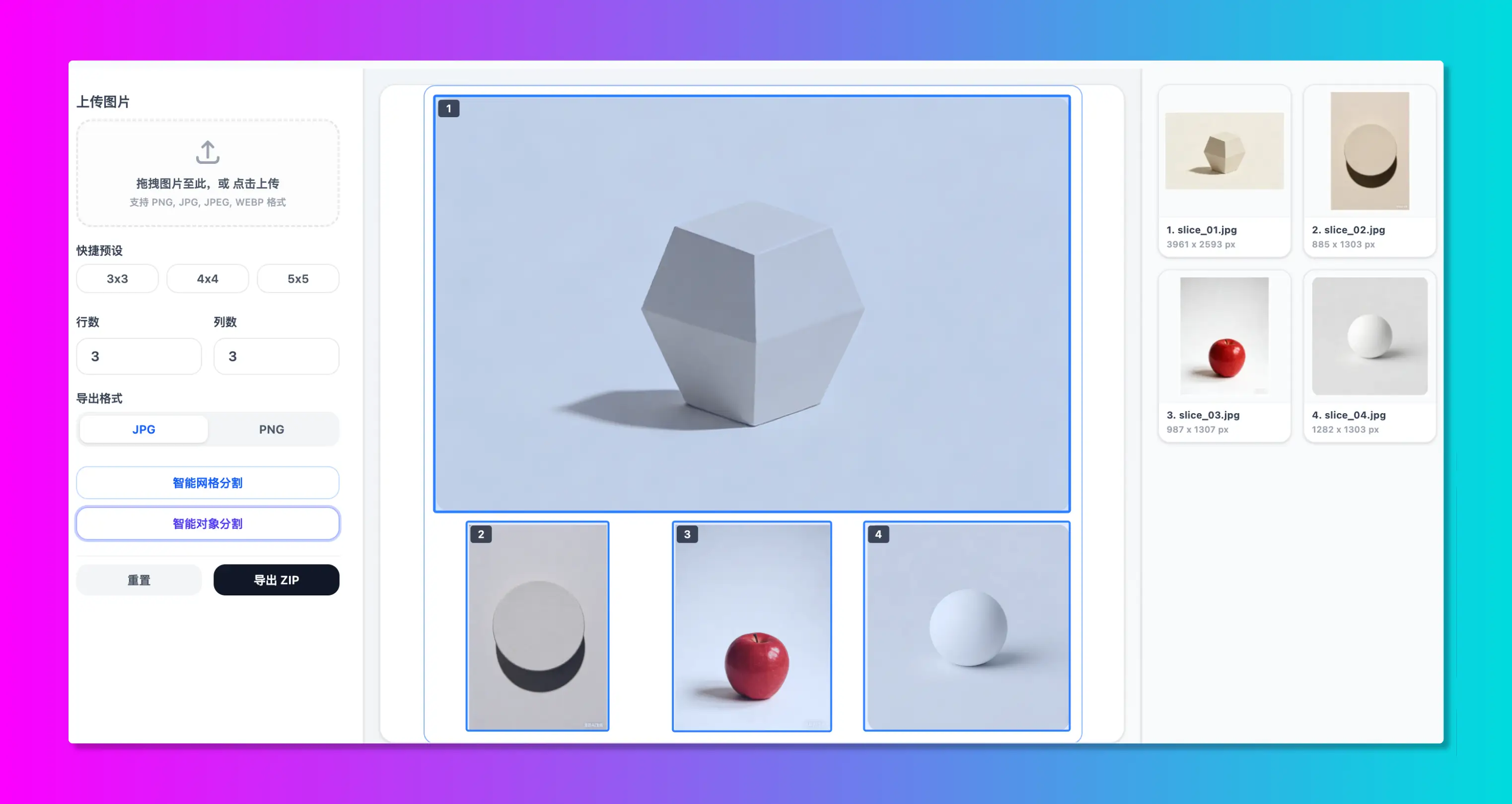
The Nightmare of Manual Cropping: Hours Wasted in Photoshop
Whether you are in e-commerce design, UI/UX interface development, or sticker design, you frequently face this tedious task: extracting multiple separate items from a single composite sheet and saving each as a standalone file.
- E-commerce teams photographing accessory layouts need to split necklaces, rings, and earrings into separate product files.
- Digital designers drawing sticker sheets (Sticker Sheets) need to extract 30+ tiny stickers as independent files.
- Web developers collecting iconography packages need to segment them into individual files.
Historically, this required mechanical Photoshop cropping:
1. Use the Lasso or Magic Wand to select a single element.
2. Create a new selection and copy it.
3. Open a new canvas and paste.
4. Export the file.
5. Return to the source image, select the next object, and repeat step 1.
If you have 50 items, this manual workflow consumes hours of your time. Even Photoshop's default "Slice Tool" creates alignment issues when elements are scattered irregularly, leaving unwanted background borders.
Now, local browser-based AI Object Slicing powered by OpenCV.js automates this workflow.
OpenCV.js Bounding Box and Contour Detection Tech Stack
OpenCV (Open Source Computer Vision Library) is the industry standard for computer vision. WoollyPix embeds OpenCV.js (compiled via WebAssembly) directly inside the browser sandbox. This allows complex computer vision algorithms to run on your local computer's processor.
The core technology behind AI Object Slicing runs in four distinct steps:
#### 1. Grayscale Conversion
Color photos contain red, green, and blue color channels. The algorithm first converts the RGB pixel matrix into a single-channel grayscale image. Removing color details allows the processor to focus purely on contrast changes.
#### 2. Thresholding and Canny Edge Detection
Next, the program scans for sharp leaps in pixel values to locate boundaries.
- The computer calculates brightness gradients between adjacent pixels. A sharp change indicates a physical edge.
- Binary thresholding converts the image into pure black and white, separating foreground shapes from background layouts.
#### 3. Contour Finding & Bounding Box Calculations (cv.findContours)
The library connects adjacent edge pixels to form closed geometric loops (contours).
- Bounding box limits filter out small pixels (noise), ignoring objects smaller than a set threshold (e.g. 20x20px).
- For each valid contour, the program calculates the minimum bounding rectangle (Bounding Rect). This rectangle forms the red bounding box shown on the canvas.
These operations run in browser memory via WebAssembly. Calculation speeds average under 200ms, isolated locally for absolute privacy.
Tutorial: Batch Cropping Stickers & Products
Let's look at how to split a sheet containing 10 cartoon sticker elements using Smart Slice:
#### Step 1: Upload Your Sheet
Open the Smart Slice page. Drag and drop your image containing multiple items directly into the canvas.
#### Step 2: Trigger Object Detection
1. In the sidebar panel, switch the mode from "Smart Grid Slicing" to "Smart Object Slicing".
2. On your first launch, the browser will download the OpenCV.js WebAssembly binary (several MBs) from a CDN, showing a loading indicator for a few seconds. Once cached, subsequent runs are instant.
3. The detector will automatically locate contours and draw red bounding boxes with numbers around each detected item on the screen.
#### Step 3: Filter Bounding Boxes
- Select/Deselect: If the algorithm detects background dust or you want to ignore specific items, click the red bounding box on the canvas to deselect it. The item is removed from the export list immediately.
- Real-Time Preview: The "Slice Preview" panel displays the isolated crops in real time.
#### Step 4: Batch Export ZIP
Choose the export format (select PNG for stickers to preserve transparent backgrounds) and click "Export ZIP". The processor clips each selected area locally and packages them into a ZIP archive instantly.
3 Tips to Maximize Detection Accuracy
- Use Solid Backgrounds: OpenCV detects contours based on contrast. High-contrast solid backgrounds (like solid white, black, or chroma-key green) ensure 100% detection accuracy.
- De-clutter the Canvas: If text markings or background patterns are detected as separate objects, simply click their bounding boxes on the canvas to deselect and filter them out before exporting.
- Leverage Transparency: Slicing transparent PNG files retains alpha channels in cropped results. This is highly useful for digital planners, sticker sheets, and graphic assets.
Conclusion
Browser-based OpenCV.js contour detection is a major step forward for web utilities, combining AI automation with absolute privacy. Using the free, serverless Smart Slice workspace by WoollyPix, creators and designers can automate tedious cropping tasks in milliseconds. Load your file and experience local browser AI today!
This article was authored and verified by the WoollyPix Graphics & Frontend Engineering Team based on modern Web APIs and industry standards. All WoollyPix tools run 100% client-side with zero server storage.