
Screenshot Beautifier: Give Your App & Code Screenshots a Premium Look
Wrap simple app screen captures in elegant browser frames, windows, or MacBook/iPhone device mockups. Customize colorful backgrounds, soft shadows, rounded corners, watermarks, and vector markups, processed 100% locally.
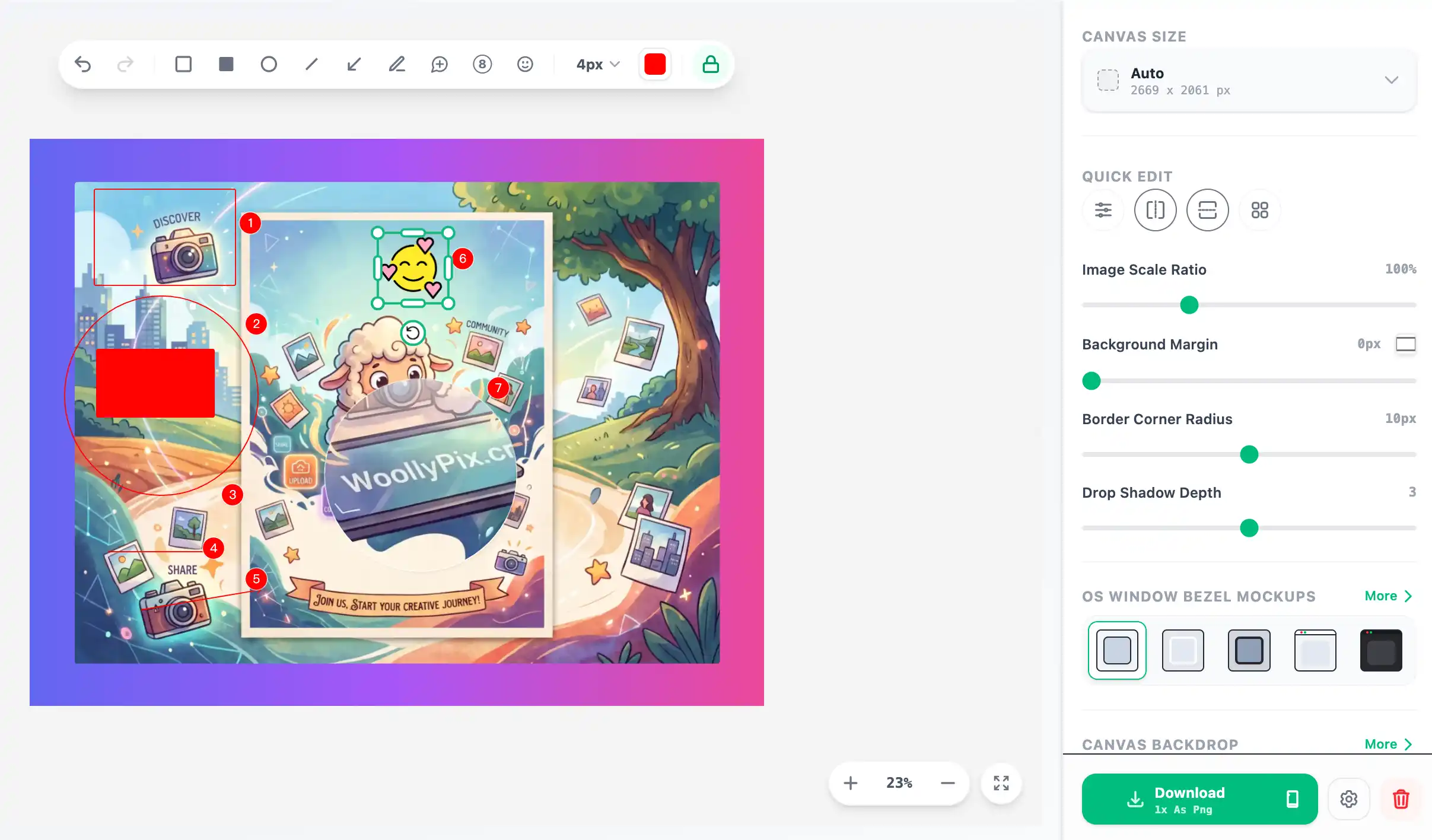
Key Layout & Beautify Features
No complex design software needed. Tweak margins, backgrounds, and shadows directly in-browser
Mockups & Window Styles
Add macOS standard window bars (three-color dot headers), Windows styles, or browser headers, or embed screenshots directly inside MacBook, iPad, and iPhone device borders.
Gradient & Image Backgrounds
Dozens of premium gradients, solid backgrounds, high-end Unsplash cosmic patterns, and minimalist desk settings. Customize branding colors using an interactive color selector.
Annotations & Magnifiers
Draw rectangles, circles, arrows, straight lines, or freehand sketches directly on the screenshot. Offers auto-incrementing step indicators and visual magnifier circles.
How to Beautify in 3 Steps
Import Screenshot
Click to browse files, drag and drop from your desktop, or use the clipboard paste shortcut (Ctrl / Cmd + V) to load the screenshot directly.
Customize Style
Adjust paddings, rounded corners, and drop shadows in the right panel. Add window top-bars or device borders, and select gradient presets or cosmic backdrops.
Annotate & Export
Use the floating toolbar to place markup arrows, steps, or magnifier bubbles. Click the download panel to save PNG, JPG or WebP images in 1x, 2x, or 3x scale.
Frequently Asked Questions
Q1: Does this tool upload my screenshots to a server?
A: Absolutely not. WoollyPix is a serverless application operating 100% locally. Your screenshots, editing configurations, and downloaded files are processed in your browser memory sandboxes. No network upload occurs.
Q2: Are the exported screenshots blurry?
A: Not at all. Although editing scales down previews for maximum framerate, the export process uses high-resolution canvas render targets at 1x, 2x, or 3x resolutions. The resulting files are ultra crisp.
Q3: How does the magnifier tool work?
A: Click the magnifier icon on the floating toolbar, drag a circular region on the screenshot area. The tool automatically renders a 2x zoomed snippet of the underlying pixel coordinates with a soft bezel.